Enterprise SSO & SCIM
SAML single sign-on, SCIM provisioning, SSO enforcement, and what happens when someone leaves.
Awk Teams supports standards-based SAML 2.0 single sign-on and SCIM 2.0 user provisioning so your identity provider stays the source of truth for who can access your agents.
| Capability | Available on |
|---|---|
| SAML 2.0 single sign-on | Scale and Enterprise |
| SSO enforcement (block non-SSO logins) | Scale and Enterprise |
| SCIM 2.0 provisioning & deprovisioning | Enterprise |
SAML 2.0 single sign-on
Sign in to the Awk console through your identity provider. New users signing in through SSO join as Member; the owner grants admin access from the console.
SAML SSO has been tested with Google Workspace and Microsoft Entra ID (formerly Azure AD). Because it is standards-based SAML 2.0, it is also compatible with other SAML 2.0 identity providers — including Okta — via standards compliance.
Set it up in the console
An owner configures SSO directly from Settings → SSO Configuration — no back-and-forth with us required.
- →Add a configuration. In the console, go to Settings → SSO Configuration and choose Add Configuration (or Edit Configuration if one already exists).
- →Register Awk Teams in your IdP. The configuration screen shows your Service Provider (SP) values — the ACS / callback URL and the SP Entity ID. Create a new SAML application in your identity provider and paste those two values into it. (Read them off the screen rather than copying them from anywhere else — they are specific to your account.)
- →Paste your IdP's metadata back in. From your IdP's SAML app, copy its Sign-on URL, Entity ID (issuer), and X.509 signing certificate into the matching fields in the console, then Save.
- →Sign in to confirm. Sign out and sign back in with an email on your domain — you should be sent to your identity provider and land authenticated.
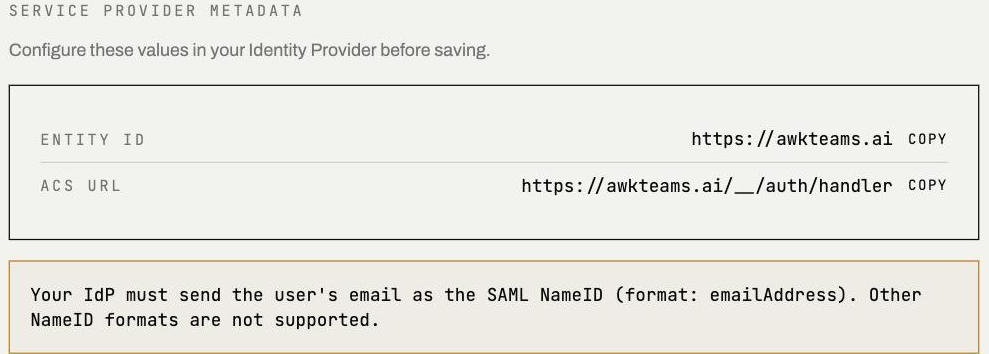
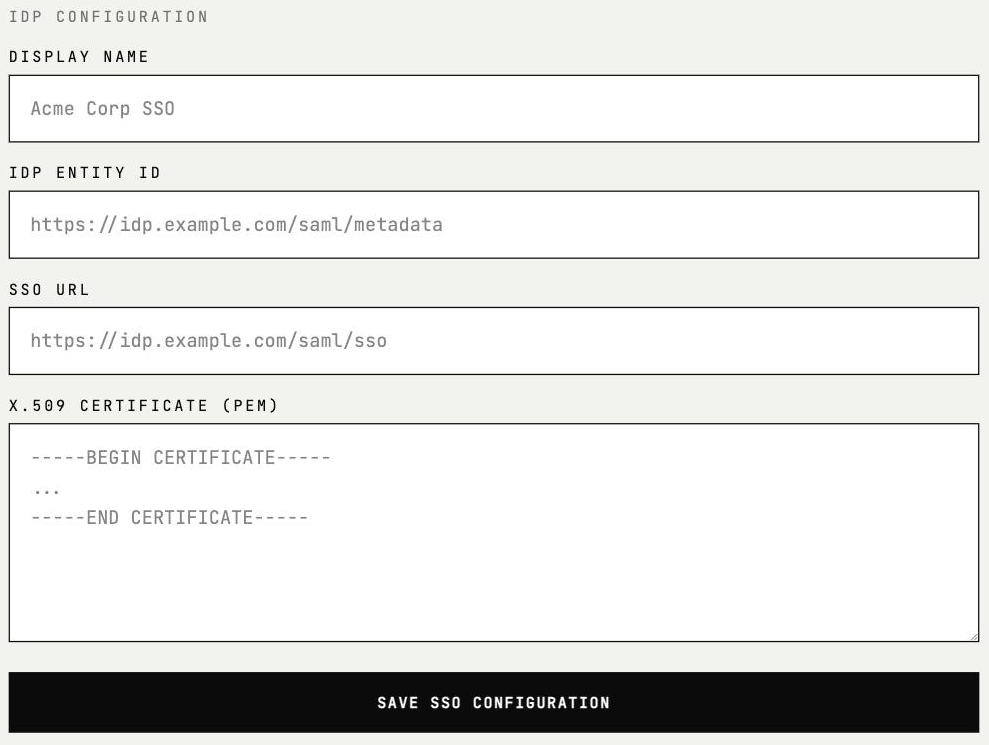
You can change identity providers or update any of these values at any time from the same screen; the change applies in place.
Certificate rotation. SAML signing certificates expire on a schedule. When yours is reissued, return to Settings → SSO Configuration → Edit Configuration, paste in the new X.509 certificate, and save. Self-serve, no downtime window needed.
Prefer us to do it? Contact hello@awkteams.ai and we will configure your identity provider with you.
SSO enforcement
On Scale and Enterprise, the account owner can require SSO for your organization, once they have signed in through the identity provider themselves. With enforcement on, anyone signing in with one of your domains is sent straight to your identity provider — other sign-in methods (Google/Microsoft OAuth, magic link) are not offered.
Enforcement applies to membership too: a person whose access has been removed from your identity provider cannot get back in through SSO.
SCIM 2.0 provisioning & deprovisioning
On Enterprise, connect your identity provider's SCIM client to automate user lifecycle. SCIM has been tested with Okta for both provisioning and deprovisioning:
- →Provisioning — assigning a user to the Awk app in your IdP creates their Awk Teams console account automatically.
- →Deprovisioning — unassigning or deactivating a user in your IdP deactivates their Awk Teams access automatically.
To enable it, go to Settings → SSO Configuration → SCIM Provisioning and turn SCIM on. The console gives you a SCIM endpoint URL and a bearer token — paste both into your IdP's SCIM (provisioning) configuration. The token is shown once; regenerate it from the same screen if you need a new one. Provisioned accounts are matched to your account's verified email domain.
Setting up the SCIM connector? Many identity providers expect the API token field to contain the token value alone. Awk Teams follows the SCIM standard and expects the full
Authorization: Bearer <token>form — so enter your token asBearer <token>in your IdP's SCIM token field.
When someone leaves
Whether a member is removed automatically (SCIM deprovision from your IdP) or manually (the account owner removes or suspends them in the console), Awk Teams disconnects the OAuth connections they authorized for P.Chief — their Gmail, Calendar, and Microsoft 365 access. Their active agent sessions are ended and they lose console and agent access.
How each connection is severed depends on the provider:
- →Google (Gmail, Calendar) — the grant is revoked directly with Google, so the token stops working everywhere immediately.
- →Microsoft 365 — the grant is revoked directly with Microsoft: Awk Teams triggers a global sign-out that invalidates the member's Microsoft sessions and refresh tokens, and the stored token is also deleted from Awk Teams — so their Microsoft access stops working everywhere. (Disabling the account in your IdP, which SCIM deprovisioning does, remains good practice as a belt-and-braces step.)
These connections are not restored automatically. If a suspended member is later restored, their access is reactivated but their previous Gmail or Microsoft 365 connections are not brought back — they reconnect themselves to use P.Chief again.
This applies only to the per-user connections that member authorized. Account-level integrations your admins configured (Slack, Jira, GitHub, and the tenant-level cloud connections) are unaffected.