Credentials & cloud access
How Awk Teams connects to your cloud storage, repos, and tools — securely.
Awk agents need access to your tools and cloud storage. We use workload identity federation across all three clouds — no long-lived keys are stored in our platform. All integration tokens are encrypted at rest with per-tenant keys and deleted on deprovisioning.
Two capabilities, one team identity
The team-scoped identity we provision for you (per-team GCP service account, AWS IAM role, or Azure app registration) is the target for two grants — both read-only, both against your own cloud resources:
- →Credentials seeding — read your team's environment files
(
.env, config, secrets) from your storage bucket at session start so agents can boot local apps and services. - →Log reading — read your deployed services' log entries (Cloud Logging / CloudWatch Logs / Log Analytics) so agents can verify a change works, reproduce a bug, or confirm a fix landed. Used by developer verification, debugging, and QA acceptance — not QA alone.
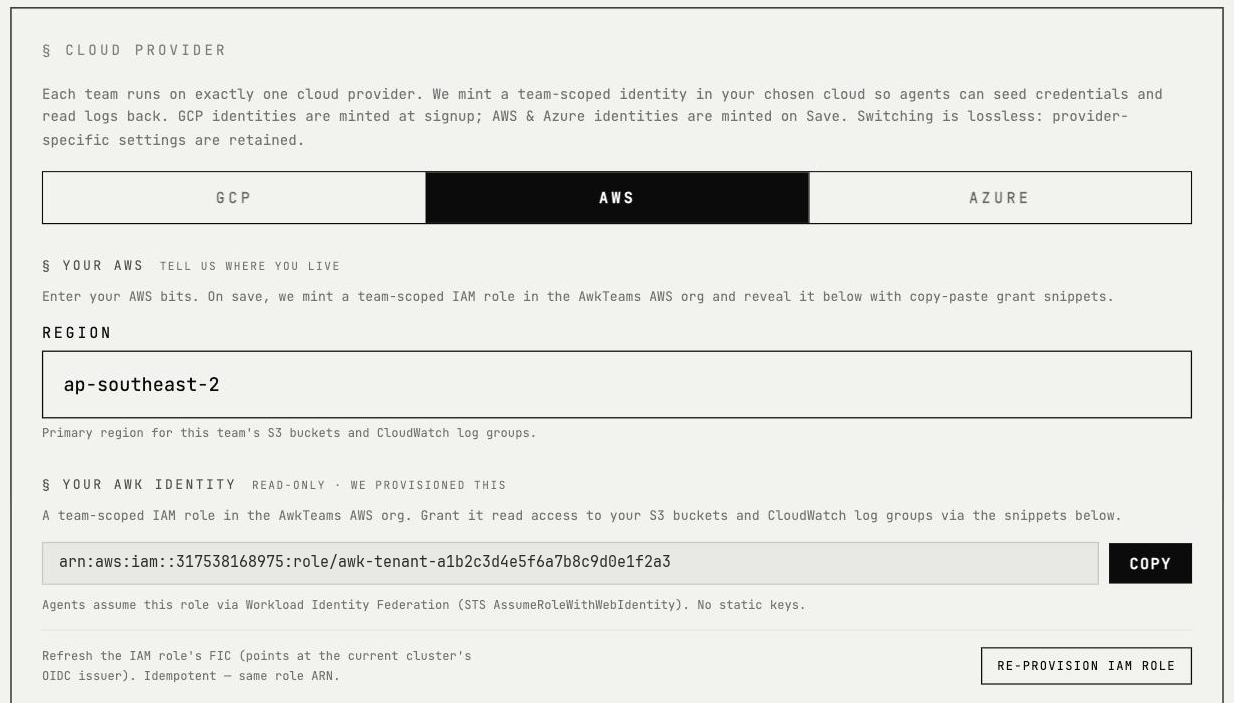
Both capabilities are backed by the same identity, so there are no extra keys to manage — you grant one identity access to two surfaces (your bucket and your logs). The exact identity is shown on your team's Cloud Provider tab in the console.
How credential seeding works
Your team's environment files live in your own cloud storage bucket. During each session, agents download these files into an ephemeral workspace. When the session ends, the workspace is destroyed.
You control what goes in the bucket. We only need read-only access to it.
How log reading works
Agents call an internal cloud_logs_read tool that authenticates as
your team's identity and queries your cloud provider's native log
store (Cloud Logging on GCP, CloudWatch Logs on AWS, Log Analytics on
Azure) — using the filter derived from the code path they're
investigating. Only projects, log groups, or workspaces you
explicitly grant access to are visible. Agents read only the entries
a query returns, for the task at hand; your log store itself is never
copied. Query results live with the thread's working history and are
deleted on the same schedule as other tool output (see the
Privacy Policy). On a permission-denied response the agent
tells you exactly which grant to add and stops.
GitHub
The Awk GitHub App is installed at the organization level. No personal access tokens (PATs) needed.
- →Permissions are scoped per-repository — you choose which repos agents can access during setup
- →The app requests read/write access to repos, PRs, issues, and branches
- →Install or modify access at any time from your GitHub organization settings
Jira
Jira access uses OAuth tokens. You authorise with Atlassian from the console's Integrations step and pick the projects agents can see.
- →Only projects you explicitly authorize are visible to agents
- →Tokens can be rotated from the console without downtime
GCP (Google Cloud Platform)
We create a dedicated service account for your team in our platform project. You grant it read access to your GCS bucket (seeding) and — optionally — to the projects your services log to (log reading).
Seeding — setup:
- →During onboarding, we show you your team's service account
email (e.g.
awk-xxxx@awk-teams-ai-prod.iam.gserviceaccount.com) - →Grant the
Storage Object Viewerrole on your GCS bucket to that service account - →Provide your GCS bucket URI (e.g.
gs://your-company-creds/)
Log reading — optional grant:
Grant roles/logging.viewer on each GCP project your services log
to, targeting the same service account:
gcloud projects add-iam-policy-binding <your-project-id> \
  --member="serviceAccount:awk-xxxx@awk-teams-ai-prod.iam.gserviceaccount.com" \
  --role="roles/logging.viewer"
No keys to upload for either capability. Access is granted to your team's own cloud identity — its service account email is the only thing exchanged, and there is no key to rotate or leak.
AWS (Amazon Web Services)
We provision a dedicated IAM role for your team (mirrors the GCP per-team service account). Your bucket policy grants it cross-account read access; a CloudWatch Logs resource policy grants it read on the log groups you want visible.
Seeding — setup:
- →During onboarding, we show you your team's IAM role ARN — a
per-team role (e.g.
arn:aws:iam::317538168975:role/awk-tenant-…), shown in your console, not a shared role - →Add a bucket policy granting
s3:GetObjectands3:ListBucketto that role (substitute your team's ARN):
{
  "Version": "2012-10-17",
  "Statement": [
    {
      "Effect": "Allow",
      "Principal": {
        "AWS": "<your team's IAM role ARN>"
      },
      "Action": ["s3:GetObject", "s3:ListBucket"],
      "Resource": [
        "arn:aws:s3:::your-bucket",
        "arn:aws:s3:::your-bucket/*"
      ]
    }
  ]
}- →Provide your bucket name and region (e.g.
ap-southeast-2)
Log reading — optional grant:
Attach a resource policy to each CloudWatch log group your services write to, allowing the same team role to read events. Substitute your team's ARN, region, account, and log group:
aws logs put-resource-policy \
  --policy-name awk-team-read \
  --policy-document '{
    "Version":"2012-10-17",
    "Statement":[{
      "Effect":"Allow",
      "Principal":{"AWS":"<your team's IAM role ARN>"},
      "Action":["logs:GetLogEvents","logs:FilterLogEvents","logs:DescribeLogStreams"],
      "Resource":"arn:aws:logs:<region>:<your-account>:log-group:<your-log-group>:*"
    }]
  }'
No access keys needed for either capability. Authentication uses OIDC token exchange from our infrastructure.
Azure
We provision a dedicated, multi-tenant app registration per team — not one shared app. Your admin grants your team's own app access to your storage container (seeding) and — optionally — to the Log Analytics workspace your services write to (log reading), in your own directory.
One-time — admin consent:
Your Azure AD admin grants admin consent for your team's app in your directory. This creates a service principal for that team's app in your directory. Both the seeding and log-reading grants target that same service principal.
Seeding — setup:
- →Assign the
Storage Blob Data Readerrole on your storage account or container to that team's service principal. - →Provide your Azure AD directory (tenant) ID and your storage
account URL (e.g.
https://yourcompany.blob.core.windows.net).
Log reading — optional grant:
Assign the Log Analytics Reader role on each workspace your services
log to, targeting the same service principal (substitute your team's
service principal object id — shown in your console):
az role assignment create \
  --assignee-object-id <your team's SP object id> \
  --assignee-principal-type ServicePrincipal \
  --role "Log Analytics Reader" \
  --scope /subscriptions/<sub>/resourceGroups/<rg>/providers/Microsoft.OperationalInsights/workspaces/<workspace>
Then provide your Log Analytics workspace GUID in the console so agents know where to query.
Your team's exact app/client ID, service principal object id, and the admin-consent link are shown on your team's Azure tab in the console (and the seed tool's error response names the exact identity to grant if you skip ahead). No client secrets to manage — authentication uses federated identity credentials from our infrastructure, against your directory.
How credentials are stored
- →Integration tokens (Slack, Jira, GitHub, Google, Microsoft) are encrypted with AES-256-GCM envelope encryption using per-tenant keys
- →Cloud storage access uses workload identity federation — no long-lived cloud keys are stored
- →Workspace credential files are ephemeral — written with restricted permissions, excluded from git, destroyed on session end
- →Never logged, stored in analytics, or used for model training
- →Deleted immediately on credential rotation or account deprovisioning
Rotating credentials

For integration tokens (Slack, Jira, GitHub):
- →Go to the Awk console under Integrations
- →Re-authorize the connection
- →The old token is replaced and deleted immediately
For cloud storage credentials: update the bucket policy or IAM grant on your side. Since we use workload identity, there are no keys to rotate in the Awk console.
Agents pick up changes on their next action — no restart required.